Operating Blank-it
Once Blank-it has been installed and configured, it will automatically run whenever when the PC starts up. It can also be manually launched from the Start Menu.
Software overview
When Blank-it is running, an icon should be visible in the system tray:
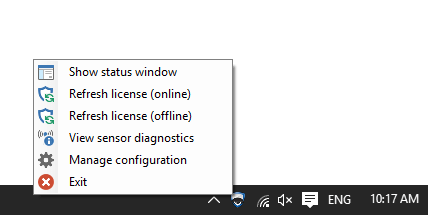
Left-clicking on this icon will show the main Blank-it status window. Right-clicking on this icon will bring up the 'actions' menu:
| Action | Permissions | Description |
|---|---|---|
| Show status window | All users | Shows the main Blank-it status window. |
| Refresh license (online) | Administrator | Attempts to refresh the software license online. |
| Refresh license (offline) | Administrator | Opens a window that facilitates an offline software license refresh. |
| View sensor diagnostics | Administrator | Opens a window that shows the current state of the motion sensor and/or GPS signal. |
| Manage configuration | Administrator | Opens a window that allows the user to install a configuration directly from the Blank-it portal. |
| Exit | Administrator | Exits the Blank-it application. |
The main status window presents a lot of the relevant status information in one location:
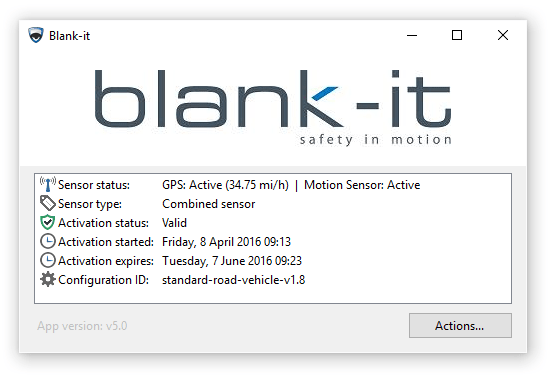
- Sensor status: The current status of the various sensors.
- Motion sensor: Whether a motion sensor device is connected or not.
- GPS: Whether a signal has been found, and if so, what the current speed is.
- Sensor type: The type of sensor that is currently running.
- Motion sensor
- GPS
- Combined motion sensor and GPS
- Activation status: The status of the current software license activation.
- Activation started: The time that the current software license activation started.
- Activation expires: The time that the current software license activation will expire.
- Configuration ID: The name of the configuration that is currently active.
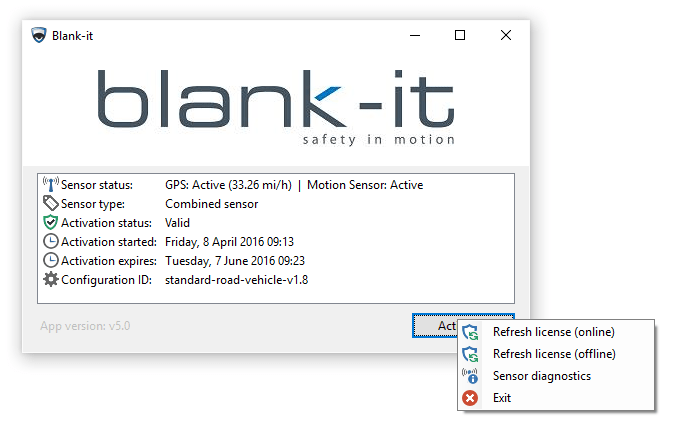
Clicking on the 'Actions' button will show a similar menu to the system-tray menu described above.
Core Concepts
The Blank-it software has the following core concepts:
Motion sensors
Blank-it utilizes the signal generated by the USB Motion Sensor to determine the movement state of a vehicle. When the movement exceeds a threshold set via the configuration, the screen will blank (or act according to the settings in the configuration).
Nominated programs
It is sometimes acceptable (and lawful) to have certain programs visible to the driver, even when the vehicle is in motion. Blank-it supports this through the concept of 'nominated programs' and the path to these programs are set in the configuration engine.
Manual reactivation
When this feature is enabled, Blank-it will continue to blank the screen even once the vehicle has stopped moving. The screen will only be shown when the vehicle comes to a complete stop AND the driver manually confirms that the vehicle is stationary. This feature ensures that the screen does not keep flashing on and off when the driver is obeying traffic signals (stop signs, traffic lights, etc.) or is in stop/start traffic.
Walkabout mode
Walkabout mode is a setting that requires a USB Motion Sensor to be present or the screen will blank. With this set to On the screen will automatically blank if no USB Sensor signal is detected. This feature provides a tamperproof fail over if the USB Motion Sensor is removed.
Blank-it Monitor
The Blank-it Monitor comes preinstalled with Blank-it v5.0 and later. It is disabled by default but can be enabled by using a custom configuration.
The Blank-it Monitor runs in the background and ensures that the main Blank-it application is always running. If the main Blank-it application is ever closed, the Blank-it Monitor will restart it. This ensures that the PC is always protected by Blank-it. Refer to "Appendix A: Configuration file customization" for more information about how to configure the Blank-it Monitor.
Blank-it Browser
The Blank-it Browser comes preinstalled with Blank-it v3.1 and later. It is disabled by default but can be enabled by using a custom configuration.
The Blank-it Browser is an embedded web browser that can be set up as a nominated program and run while the screen is otherwise blank. In addition, it can be set up to restrict which websites the user can visit. Refer to "Appendix A: Configuration file customization" for more information about how to configure the Blank-it Browser.
Voice commands
Voice commands allow the user to control Blank-it by speaking to the computer. They are disabled by default but can be enabled by using a custom configuration.
The following voice commands are supported:
| Command | Description |
|---|---|
show <name> | Shows the nominated program with the specified name. |
show screen | If manual reactivation is enabled, shows the screen once the vehicle has stopped. |