Configuration
Before using the View-it software, it needs to be configured to match your specific environment and requirements.
Configuration page
To access View-it's configuration options, the following steps should be followed:
-
Run the View-it software from the Start Menu.
-
Right-click on the View-it item in the System Tray / Taskbar and then click on the 'Configuration' item.

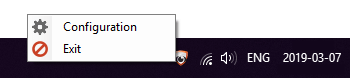
- Navigate to the 'Device Selection' tab or the 'Video Feed' tab, as desired.
Device selection tab
The device selection tab allows you to configure which camera device View-it will take its input from.
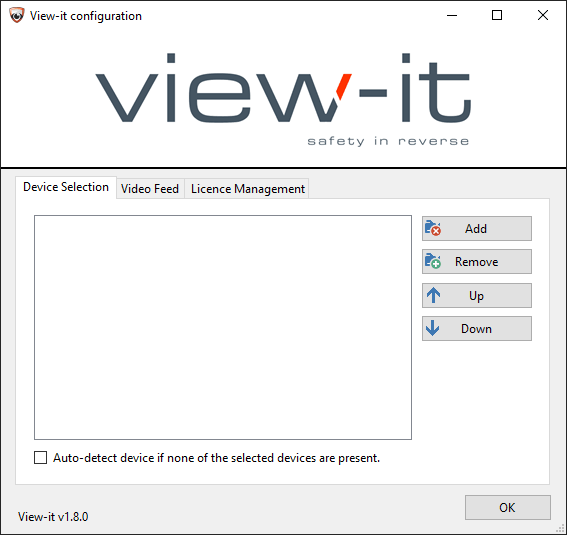
To add a specific device, press the 'Add' button and then select it from the device list.
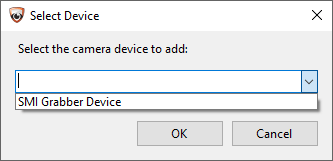
Multiple devices can be added. View-it will use the video feed from the first listed device that is providing a valid signal. The order in which the devices are checked can be controlled using the 'Up' and 'Down' buttons.
The 'Auto-detect device if none of the selected devices are present' checkbox can be ticked to instruct View-it to automatically scan scan all cameras on the system once it has exhausted the specified list.
Video feed tab
The video feed tab allows you to control the video feed.
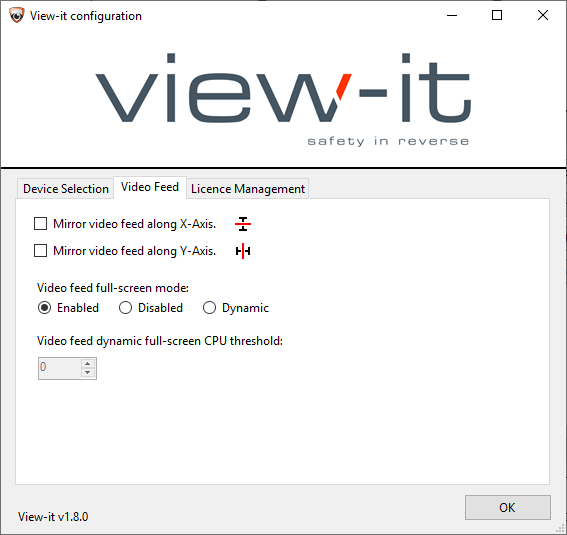
The following options are available:
- Mirror video feed along X-axis - if checked, the video feed will be flipped along its X-axis.
- Mirror video feed along Y-axis - if checked, the video feed will be flipped along its Y-axis.
- Video feed full-screen mode: Enabled - if selected, the video feed will be scaled to fit the screen.
- Video feed full-screen mode: Disable - if selected, the video feed will be shown in its native resolution.
- Video feed full-screen mode: Dynamic - if selected, the video feed will be scaled to fit the screen as long as the CPU usage of the machine is below the specified CPU threshold. If the CPU usage goes over the threshold, then the video feed will just be shown in its native resolution.
Advanced configuration
View-it's configuration is stored in the %ProgramData%\View-it\View-it.ini file.
This is usually C:\ProgramData\View-it\View-it.ini on most standard Windows installs.
All of the configuration options above can be set by in the configuration file. Administrators can manually craft a configuration file and then deploy it to all devices in their fleet.
An example configuration file is as follows:
[Devices]
PreferredDevices=CameraDevice1,CameraDevice2,CameraDevice3
AutoDetect=true

[Video]
MirrorX=false
MirrorY=false
FullScreen=dynamic
FullScreenCPUThreshold=50

[Detection]
Mode=FSA_001

[Licensing]
ProductKey=XXXX-XXXX-XXXX-XXXX-XXXX-XXXX-XXX
The following configuration options are available:
DevicesPreferredDevices: A comma-separated list of device identifiers. View-it will always try to acquire a video feed from these first.AutoDetect: Controls whether View-it will try to auto-detect a video feed (after it has tried the preferred devices above). Eithertrueorfalse.
VideoMirrorX: Mirror the video feed across the X-axis. Eithertrueorfalse.MirrorY: Mirror the video feed across the Y-axis. Eithertrueorfalse.FullScreen: Controls whether the video should be resized to fill the screen or not.trueto resize,falseto leave in the original size,dynamicto dynamically decide whether to resize or not based on available CPU usage.FullScreenCPUThreshold: The percentage CPU usage threshold that dynamic resizing will work until.
DetectionMode: The video detection mode. Options areDEFAULT,FSA_001,FSA_002,FSA_003. These options can be combined with commas or plus signs to create a composite mode (for example:FSA_001,FSA_002). Speak to your View-it installer for more details.
LicensingProductKey: The product key to use when acquiring a View-it license.