Installation
To install the View-it solution, two separate components must be individually installed: the View-it software, and the camera and video capture device.
View-it software
-
Download the software from the link that was supplied to you on purchase, or from the Blank-it Portal (opens in a new tab).
-
Double-click the
.msifile. -
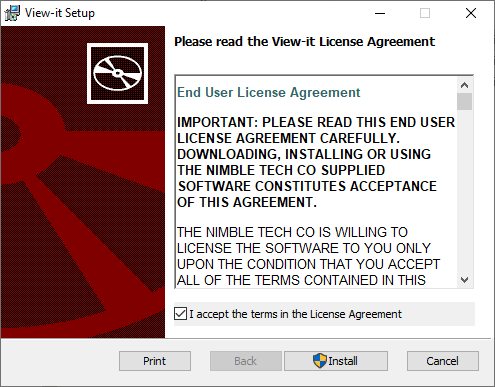
Accept the End User License Agreement and click 'Install' (see image below).
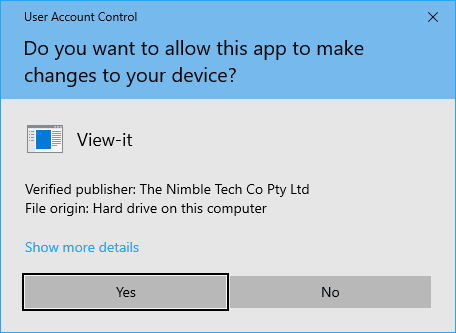
- Click 'Yes' on the User Access Control prompt (if it appears).
- Wait for the software to be installed, and then click 'Finish'.
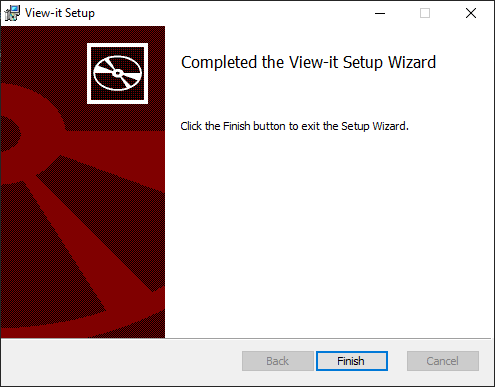
- View-it has now been successfully installed. You can launch it by clicking on the View-it entry on your Start Menu. Please not that the View-it application will start in a minimized state - you can find it as a system tray icon.
Camera and Video Capture Device
-
Wire the camera into the vehicle so that when reverse is selected, the camera is powered on.
-
Plug the USB cable into the dock.
-
Install the Video Capture Device drivers.
Post-installation steps
Once the View-it software has been installed, the software license needs to be activated and then the software needs to be configured. Please refer to the licensing and configuration sections of this manual for further instructions.